Codex Mobile Remote Approval Infinite Loop Bug: How I Fixed It
After a recent Codex update, Android devices got stuck in an infinite loop during device registration for mobile remote control. Here's how to fix it.
Contents
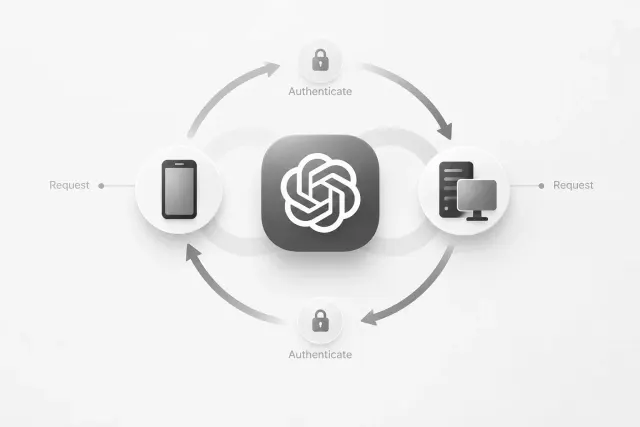
Codex was updated recently, and it caused a frustrating problem. I tried to remotely control Codex on my PC from my phone by tapping "Authorize this phone," but it fell into a loop: authorization request > authorization > authorization request, repeating endlessly.
Cause analysis
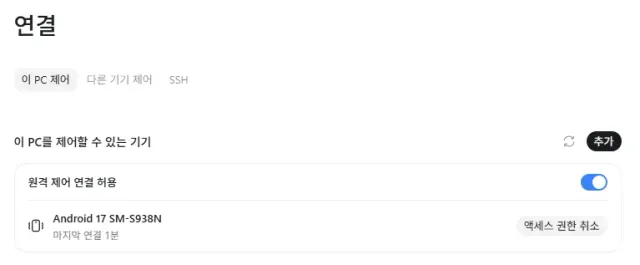
Windows ChatGPT Codex > Settings > Connect > This PC Control: register the devices that will control this PC via the QR code
At the time, the Windows Codex package was 26.928.3736.0 and the CLI was 0.159.2. I had confirmed the Android app was also up to date. I checked that the account and workspace matched, and I was already using two-step verification with OTP. I also checked the device clock: the PC's time matched the server's UTC at the time of checking, so there was no significant time offset. Given this, there wasn't enough evidence to make recreating the account or turning off two-step verification my next fix.
Where did the problem occur?
Based on the symptoms I observed, the window I can narrow down is from web approval until mobile device registration completes. Returning to the app alone doesn't prove that authorization result processing, token exchange, and device registration all succeeded.
Public reports have similar clues. A Pixel Fold user recorded that the browser approval response succeeded and the Android auth callback reached ChatGPT, but device registration never completed. They said an iPhone connected fine with the same PC and account.
Possible causes include an issue in how the Android app handles the auth result or registration status, or a compatibility problem between the app and the server. The cases where people succeeded after switching to beta do support a link to the mobile app version. However, I didn't run a controlled experiment that accounted for server changes around the update time, so I can't definitively pin down the exact cause from this alone.
Some reports mention past device transfers or local secure storage problems, but these are still hypotheses. There isn't enough evidence to list Smart Switch, Android Keystore, or a backend defect as the confirmed cause. Even if a command runs on the PC through a separate path, that doesn't prove the phone's pairing is working.
Clues to the solution
On a Pixel Fold with Android 17, an error that kept recurring on ChatGPT 1.2026.265 was reported as resolved after updating to beta 1.2026.272. On a Galaxy S22 with Windows, people who joined the Google Play beta and updated from 1.2026.265 to 1.2026.272 reportedly completed phone registration.
I also confirmed pairing succeeded after updating to the beta. Version 1.2026.272 is the version confirmed in public cases.
Steps to update via Google Play beta
Beta builds are experimental, so other features may be less stable. If stability matters more for your work, waiting for the stable update is also an option. Google also notes the instability of betas and limits on the number of participants.
Join the official beta through this link:
https://play.google.com/apps/testing/com.openai.chatgpt
When the Google sign-in screen appears, sign in with the Google account you use on the Play Store on your phone. A beta tester enrollment button will appear. Tap it and you're done.
Tapping it doesn't update the beta version on the Play Store immediately. After a few minutes, the button changes to Update.
Then reconnect on your PC using a new QR code. Go to Settings → Connections → Control this PC → Add or Set up in the desktop app. Scan the new QR code with your phone, select the same ChatGPT account and workspace, and complete any required verification. Menu labels may differ slightly depending on the app version.
Comments 4
- Loading comments.